
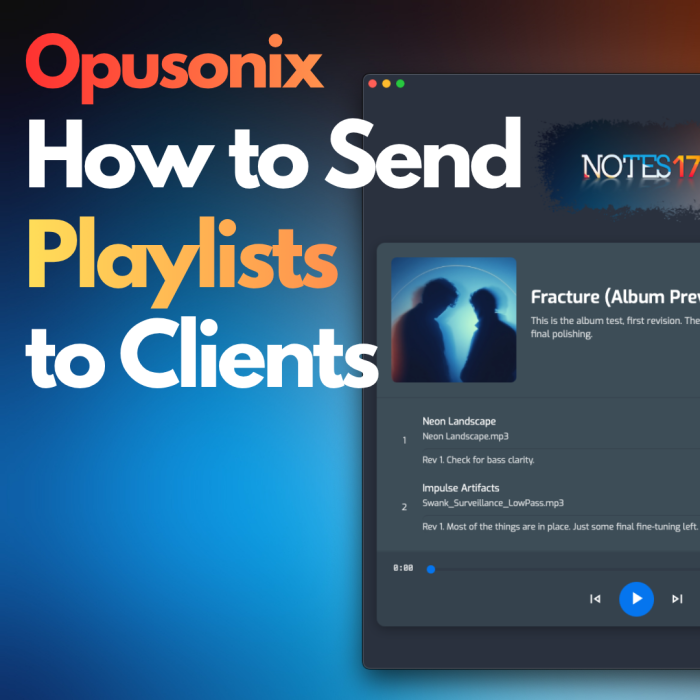
How to Send Clients a Playlist (and Why They Prefer It)
Table of Contents
Your client wants to hear their music. A playlist is the simplest way to let them: it takes a few clicks to set up, and engineers tell us clients prefer playlists to file links.
This article talks about why a playlist works for both sides, what one engineer told us, and how to send one.
About the Playlist Feature
For you
- Easy to setup: Create the playlist from the Share sidebar of the track workspace you’re working in.
- One link, any scope. Share a single track or the whole album with a client, a bandmate, a producer or a label contact.
- Send it your way. Copy the link into a message, or let Opusonix email it for you with your own note.
- Replies come to you. If the client answers the playlist email, Opusonix adds the reply to the project’s chat stream and sends you a push notification.
For your clients
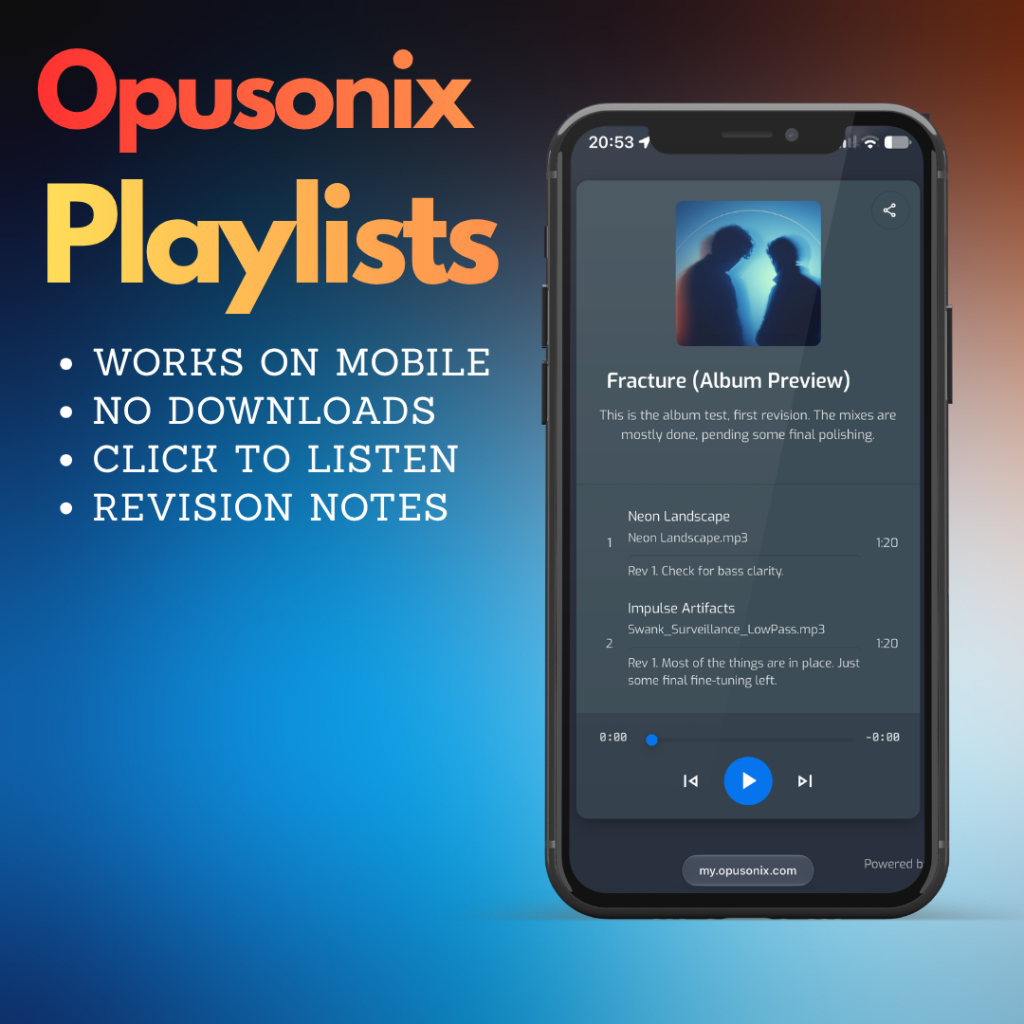
- They open it and press play. It runs in the browser on a phone or a computer, with nothing to download.
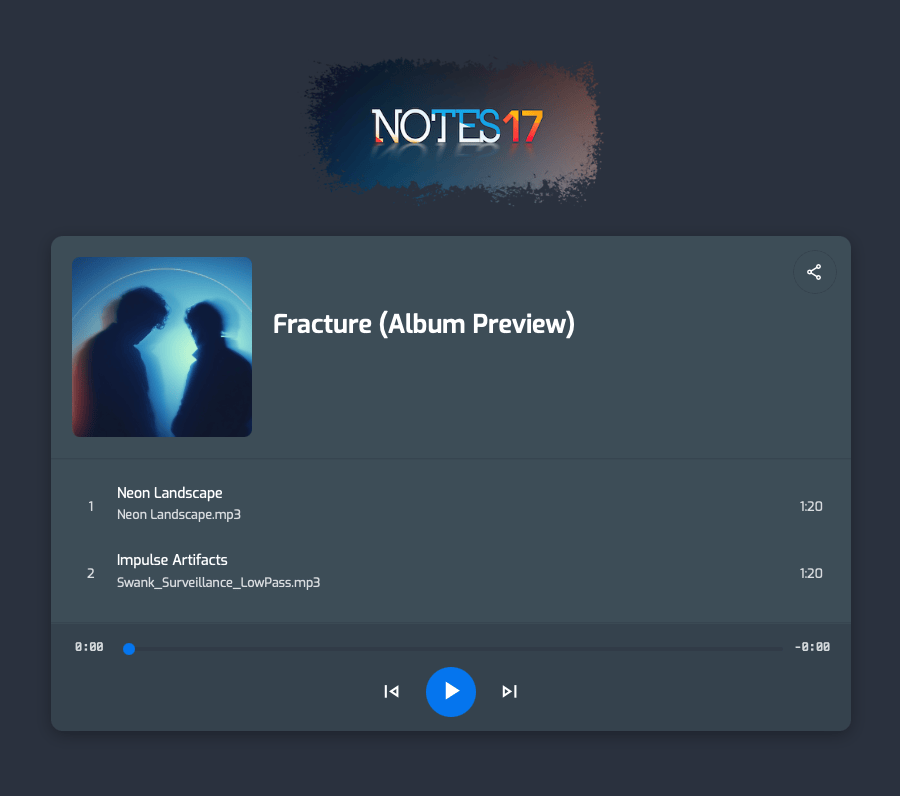
- It plays like a proper audio player. Tracks sit in album order and play gaplessly, so they hear how the whole album flows instead of a folder of files.
- Playback keeps going when the phone sleeps. Clients tell engineers this is where Dropbox-style links fall short.
- It comes from you. The email carries your name, and your branding if you’ve set it up.
What an engineer told us
We recently talked with an engineer who runs hundreds of projects through Opusonix. Public playlists are his favorite feature. His clients tell him they like having a proper player instead of a Dropbox link: the whole album on their phone, like a music app, and playback that keeps going when the screen goes to sleep.
When he sends a team update, he sets the album’s playlist as the primary action, so the update leads with the music. He’s noticed clients are more likely to join the project workspace after using the playlist, but that’s a bonus. The point is that they can hear the music.
How to send a playlist
- Open the Share sidebar. In a track workspace, click the Share icon. The Share sidebar opens on the right.
- Create a playlist. Under the Playlists section, create a new playlist if there isn’t one already.
- Choose the tracks. In the New Playlist panel, select which tracks to include: just this one, or several (or all) tracks from the same album.
- Name and describe it. Both appear on the playlist itself, so the description is a good place to say what you’d like the listener to focus on.
- Share it. When you created a playlist, you’ll see the Share panel right away. For an existing playlist, click on the Share button for the playlist (in the sidebar) to open the Share panel. From there you can either:
- copy the playlist link and send it any way you like, or
- embed the playlist on your website, or
- enter one or more email addresses, add an optional message, and let Opusonix send the playlist link for you.
What your recipients get
An email with your name and branding (if set), a clear message about the playlist, and a button that leads to it. The playlist works in a browser on a computer or a mobile device, and they can listen to the tracks in a proper audio player.
Replies go straight to the project chat
If a recipient replies to the playlist email, the reply is picked up automatically and added to the project’s chat stream. You also get a push notification. The client can answer from their inbox and you still see it where the rest of the project lives.
What comes next
A playlist has done its job once your client presses play. If they want to take part, with comments or feedback, the project workspace is there as a next step.
Try 7 days free at opusonix.com/signup.