
Introducing "Review a Mix": The Fastest Way to Review, Compare, and Get Feedback on a Finished Mix
Sometimes you don’t need a full project — you just need a place to review. You’ve already tracked, edited, and mixed. The files are prepped. Maybe you want to get the mix in front of a client and start collecting notes. Or maybe it’s just you, comparing a few revisions or checking the mix against a reference before you decide it’s done.
That’s exactly what our new Review a Mix workflow is built for.
What’s New
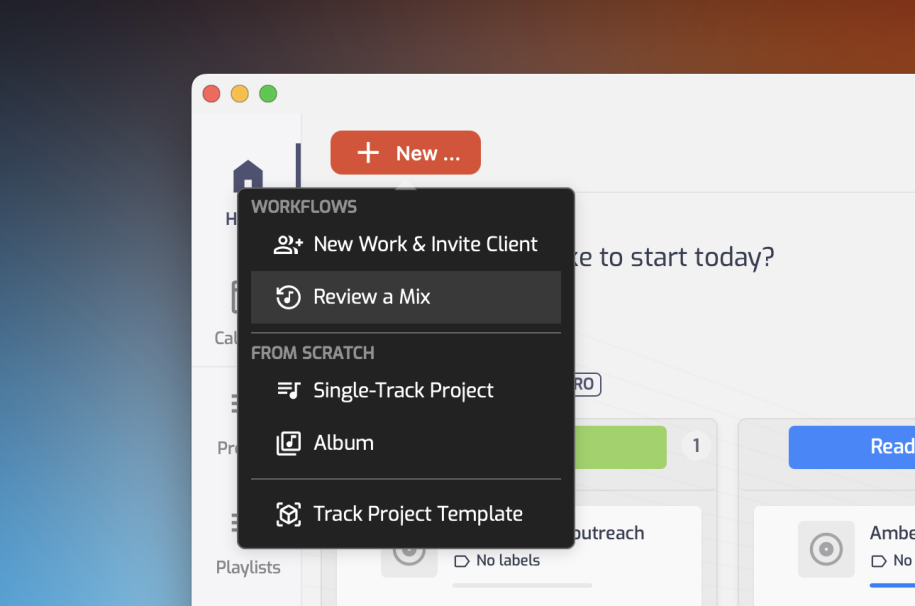
When you click the + button in Opusonix, you’ll now see a second option alongside “New Project”: Review a Mix.
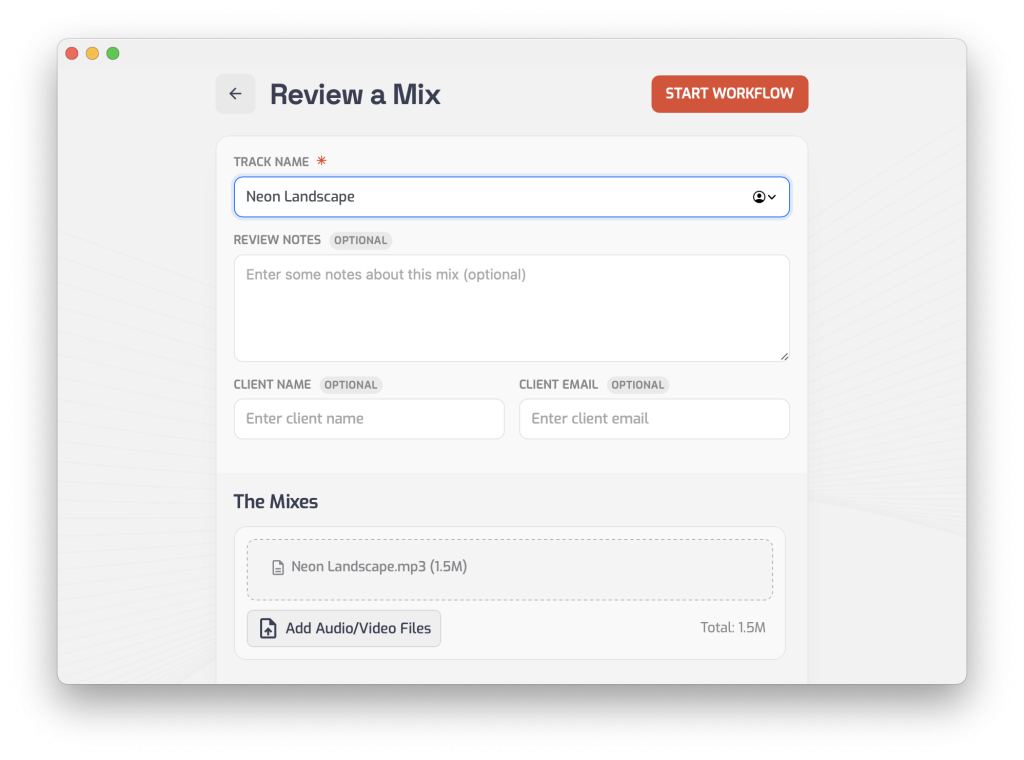
This opens a simplified, single-screen setup — no folders, no file requests, no project scaffolding. Just:
- Track title
- Track notes (optional)
- Mix file(s) — drop in one or more versions
Hit Start Workflow, and Opusonix instantly creates a track project with your notes and mixes already loaded and ready for review.
Works Just as Well Solo
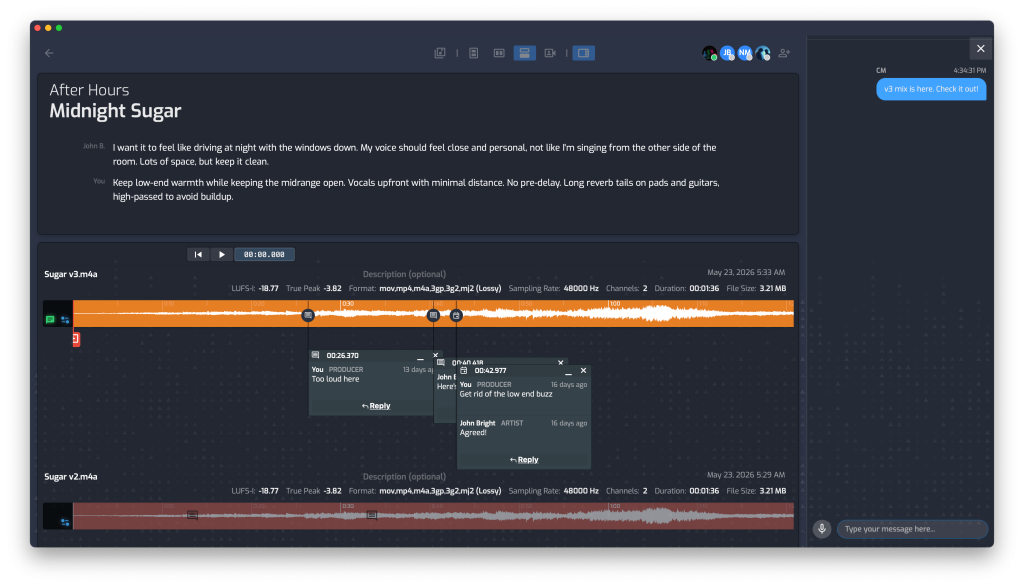
The client email field is optional for a reason. Sometimes you just want a focused space to sit with a mix yourself — A/B’ing revisions, checking a mix against a reference track, or leaving your own timestamped notes before you commit to a direction. Skip the email, drop in your files, and Opusonix becomes a private review space: version comparison, comments, and revision status, all without inviting anyone else in. You can always add a client later once you’re ready for their feedback.
Bringing in the Client
Want the client involved right away? Just add their email address before starting the workflow. They’ll get an invite to join the project and can immediately start leaving timestamped comments on the mix — no extra setup required on your end.
How to Use It
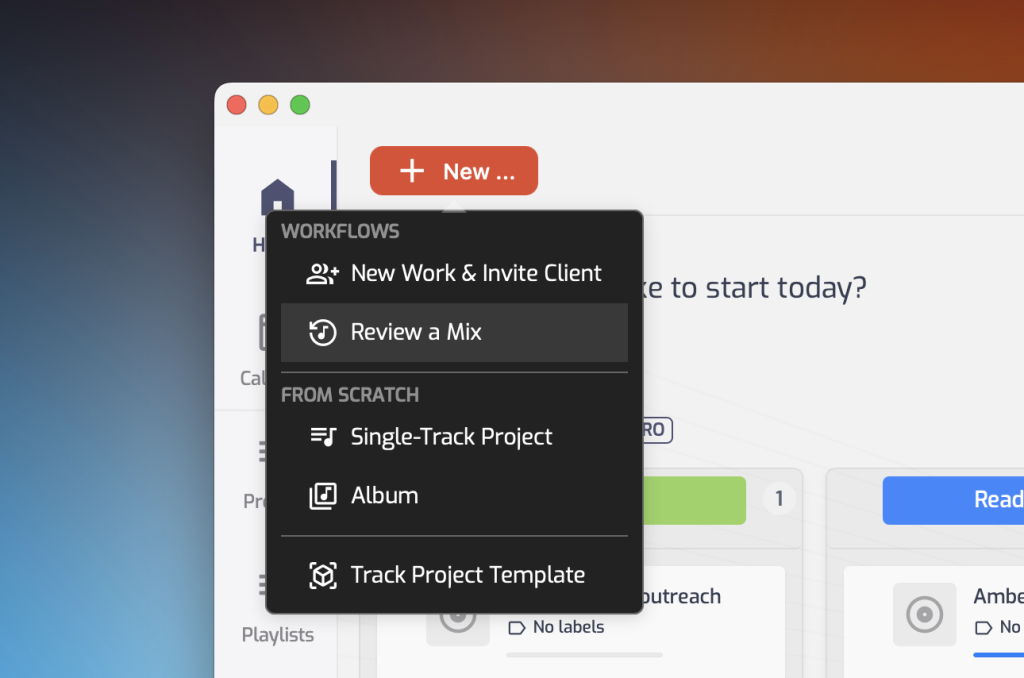
- Click + in your Opusonix dashboard
- Select Review a Mix
- Enter your track title (and notes, if you’d like to add context)
- Drop in your mix file(s) — add multiple versions if you want the client comparing options
- Optionally, enter the client’s email to invite them — or skip it and keep the space to yourself
- Click Start Workflow
That’s it — your review project is live.
Don’t Forget: It’s Also Built for Delivery
Once the mix is approved, you don’t need to leave Opusonix to wrap things up. Use the same project to package and send the final files — so the whole back half of your workflow, from first round of notes to final delivery, stays in one place.
One Workflow, Not the Only Workflow
Review a Mix is a shortcut for moments where you already have mixes to review. If you’d rather bring a project into Opusonix earlier — kicking things off at project initiation, requesting files from a client, then uploading mixes for review — you can absolutely still do that with a standard New Project, or use the New Work with Client workflow. This Review-a-Mix shortcut simply gives you a faster on-ramp for situations where all you need is the review-and-deliver stretch of the process.
Use whichever entry point fits the job.