

How to Use Opusonix to Produce Faster, Better Mixes and Deliver a Better Client Experience
Table of Contents
Modern audio production is no longer just about mixing and mastering. A huge part of the process now involves project organization, client communication, file transfers, revision management, and keeping everyone aligned throughout the production cycle.
This guide covers the best ways to use Opusonix to streamline your production workflow from project creation all the way to final delivery. The goal is not just to move faster, but to reduce friction, stay organized, make clearer decisions, and create a smoother experience for your clients.
1. Best Practices for Starting New Projects
The fastest and most efficient way to kick off a new project in Opusonix is by using the Project Planner feature.
From your dashboard, click on “New Project with a Client” to open the planner.
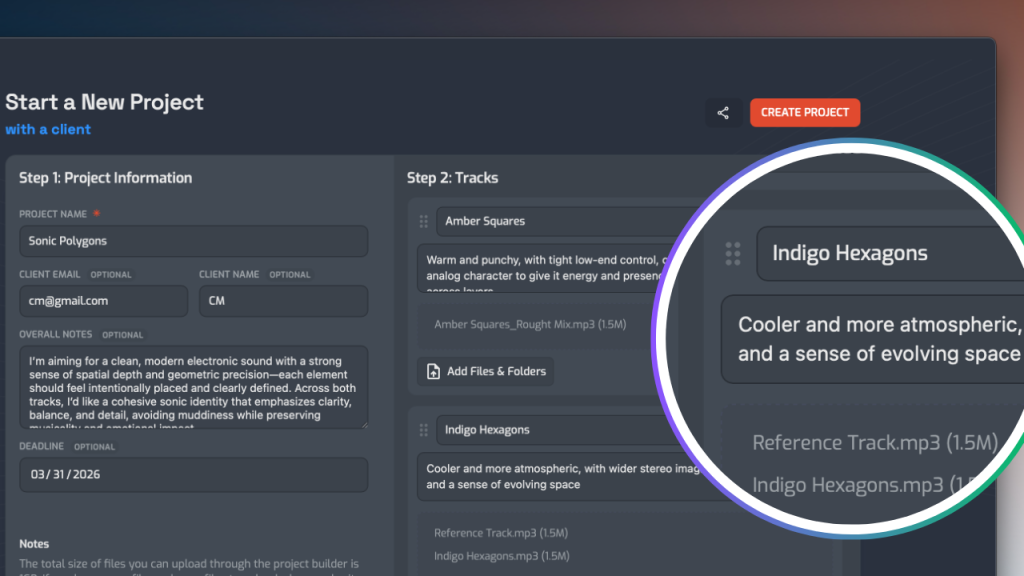
The Project Planner acts as a centralized project setup hub where you can:
- create albums,
- configure tracks,
- attach stems and references,
- invite collaborators,
- define notes,
- and structure the entire project before any mixing begins.
Creating Solo Projects
If the project does not involve a client yet, simply:
- Enter the project or album title.
- Configure the tracks.
- Optionally attach stems, rough mixes, demos, or reference tracks.
- Click Create.
Opusonix will automatically:
- create individual track workspaces,
- organize them into an album,
- and prepare everything for production immediately.
Even if you do not have files ready yet, you can still create the tracks first and rename them later. This allows you to start organizing the production structure early instead of waiting until all files arrive.
Creating Client Projects
If you are working with a client, the Planner becomes even more powerful.
Inside the Planner, you can:
- add the client’s name and email,
- configure track-level collaborators,
- include album-wide production notes,
- and attach track-specific instructions before the project even starts.
Once the album and tracks are created, Opusonix automatically invites your collaborators into the correct workspaces.
This removes the need to:
- manually create folders,
- send invitation emails separately,
- or explain where files and communication should happen.
Everything is ready from day one.
Using the Guest Project Request Portal
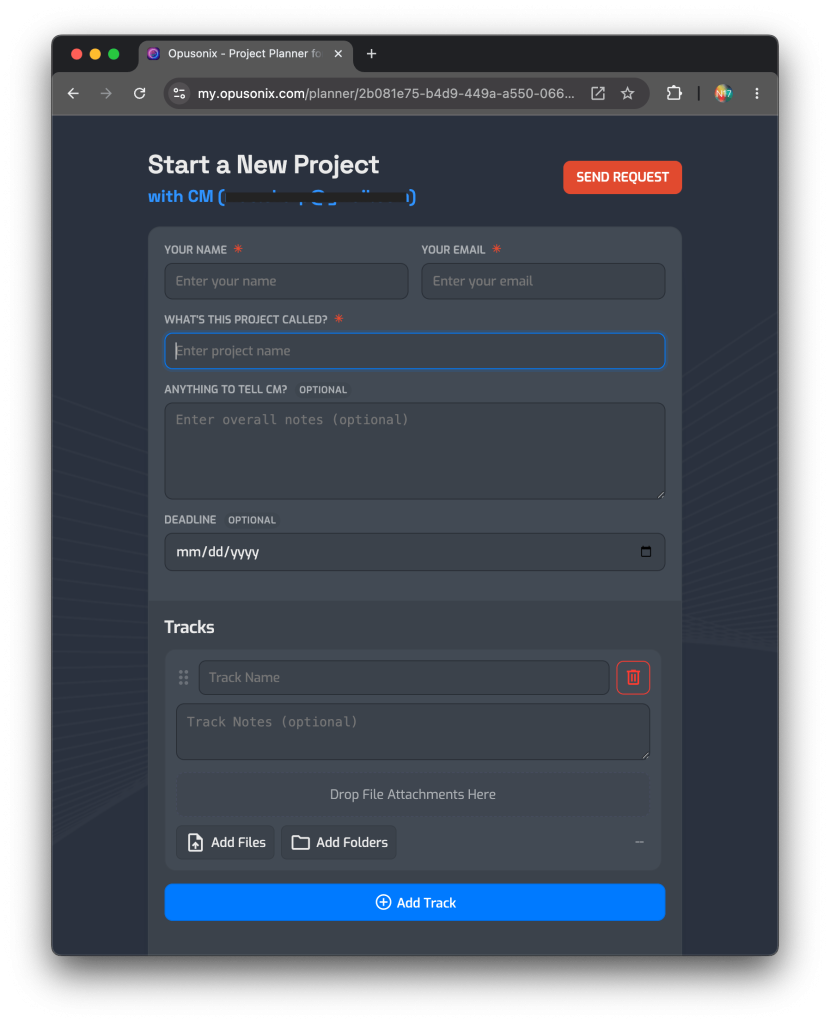
One of the most efficient workflows is to let clients submit project requests directly through your Planner.
Inside the Planner:
- Click the Share button.
- Enable guest access.
- Copy the generated link.
You can:
- send this link directly to clients,
- include it in onboarding emails,
- or embed it into your website using an iframe.
Clients can then submit:
- files,
- project notes,
- artistic directions,
- deadlines,
- and track information
without creating an account or signing in. Once your client submitted a project request, you will receive a notification and can approve or reject the request.
This workflow dramatically reduces project setup friction and gives you a structured project intake system from the very beginning.
2. Best Practices for Collecting Files from Clients
If you already used the Project Planner to create your projects, your files may already be attached and organized inside the track workspaces.
You can access uploaded files directly inside the Files Pod, where you can:
- preview files,
- organize them,
- right-click and download them,
- and immediately begin production.
However, there will be many situations where you need to request additional files later in the process.
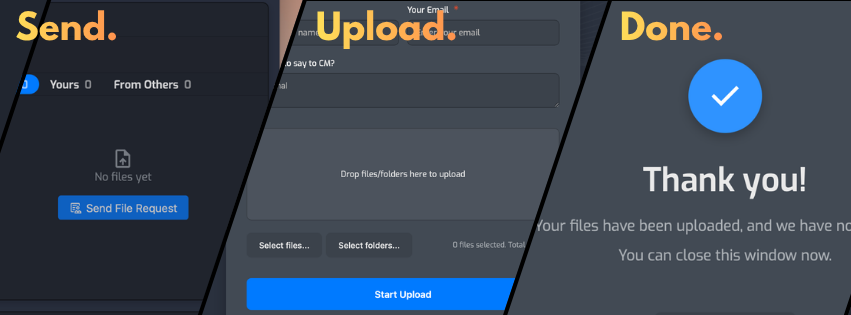
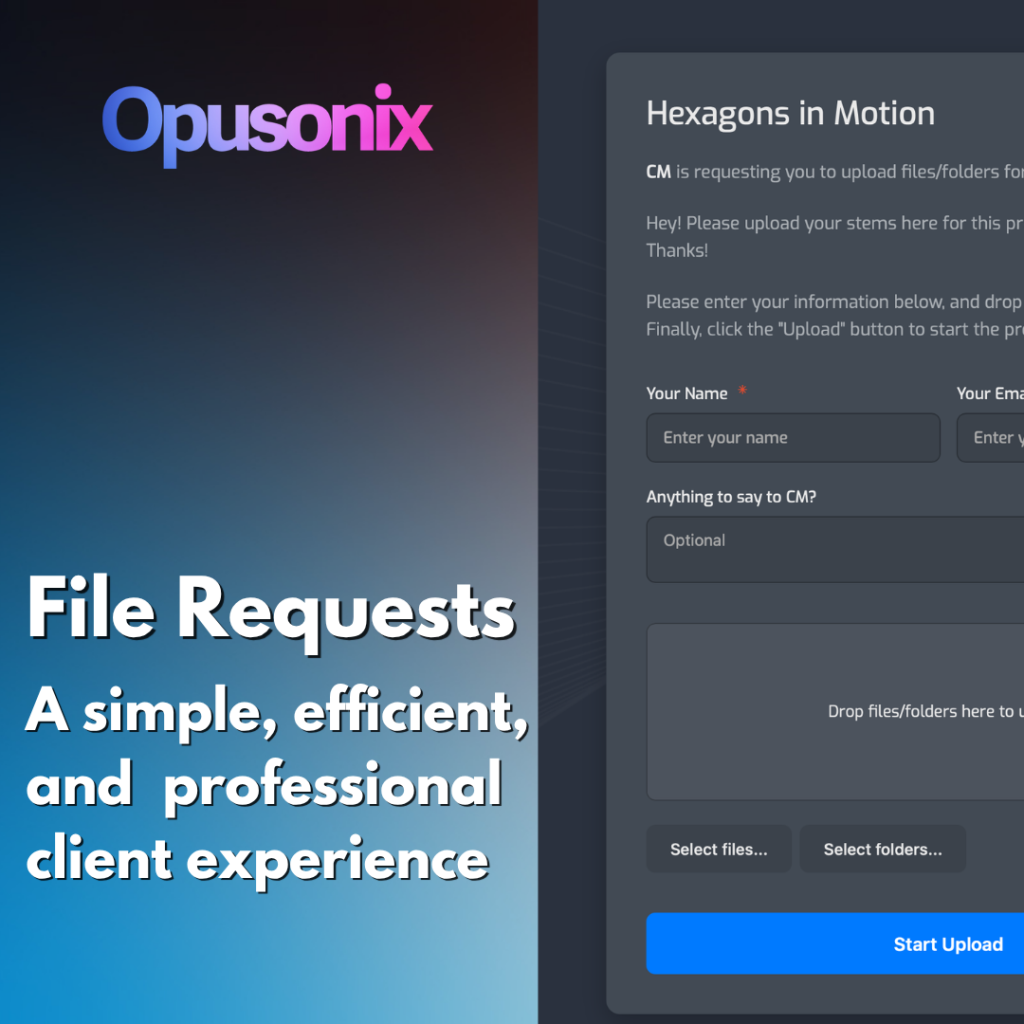
The best way to handle this is through the File Request feature.
Using File Requests
Inside a track workspace:
- Locate the Files Pod.
- Click “Request Files…”.
This opens a streamlined request interface that behaves similarly to writing an email.
You can:
- select a collaborator,
- include a custom message,
- specify exactly what files are needed,
- and provide additional instructions.
You can include the following things in the custom message field:
- request updated stems,
- ask for alternate vocal takes,
- request a reference track,
- or ask the client to include tempo/key information.
Once sent:
- the client receives an email notification,
- clicks the upload link,
- and uploads files without signing in.
Clients can also include their own custom message alongside the upload. Those notes are automatically collected inside the track workspace so nothing gets lost across separate communication channels.
As soon as files are uploaded, you are instantly notified and can continue working without delays.
This creates a much smoother experience compared to traditional workflows involving:
- email attachments,
- temporary transfer links,
- or fragmented cloud storage folders.
3. Keep All Feedback in One Place
One of the biggest causes of slow revisions is fragmented communication.
When comments are spread across:
- emails,
- text messages,
- screenshots,
- DMs,
- and cloud drive comments,
important context gets lost very quickly.
Opusonix is designed to centralize revisions directly inside the project workspace.
Uploading New Mix Revisions
When a new revision is ready:
- Drag and drop the new mix directly into the Media Tracks Pod.
- Open the track workspace.
- Click “Notify Teams…” in the top-right corner.
- Select the collaborators you want to notify.
- Include a custom message if needed.
- Send.
Your collaborators will receive an email inviting them to review the latest mix.
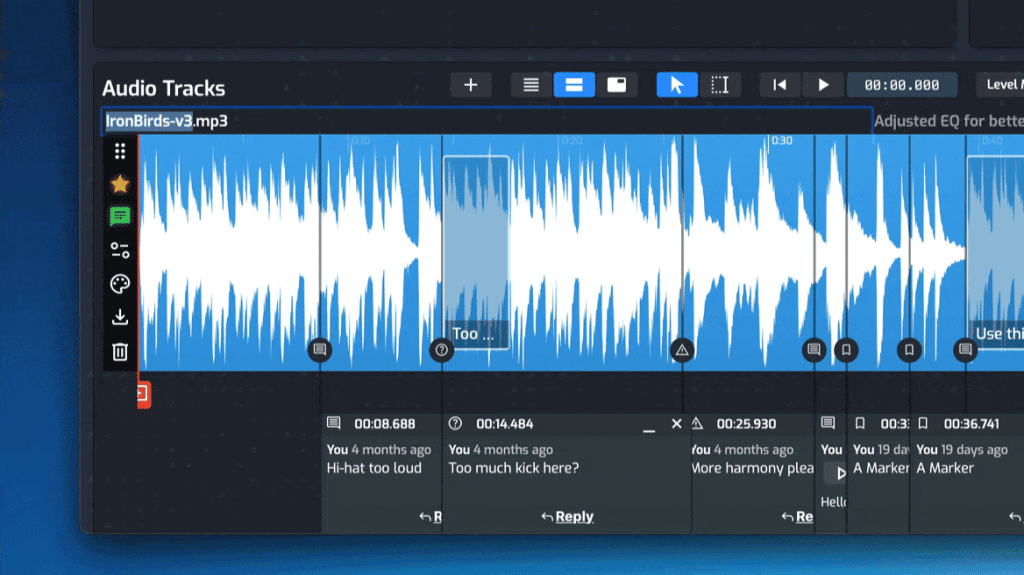
Client Access Without Friction
Clients can click “Access Project” directly from the email and enter the workspace immediately without creating accounts or signing in.
Under the hood, Opusonix uses secure hidden authentication layers so collaborators can access only authorized projects while avoiding the usual onboarding friction.
This is especially important when working with:
- artists,
- managers,
- labels,
- or non-technical collaborators.
Instead of teaching clients how to use complicated collaboration software, they enter a simplified workspace focused on:
- playback,
- listening,
- commenting,
- and communication.
This dramatically reduces the amount of back-and-forth support work engineers normally have to provide.
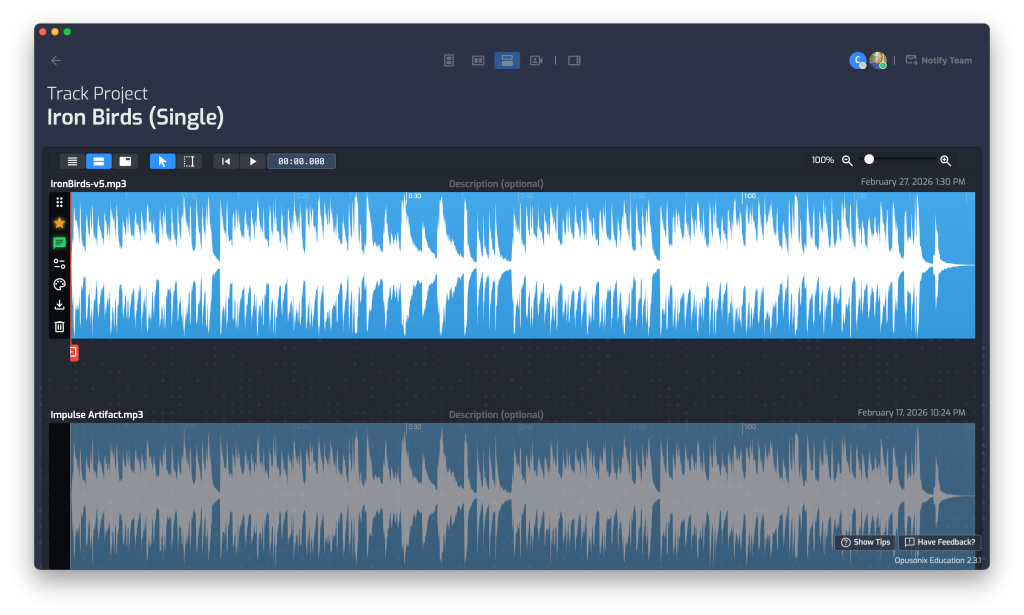
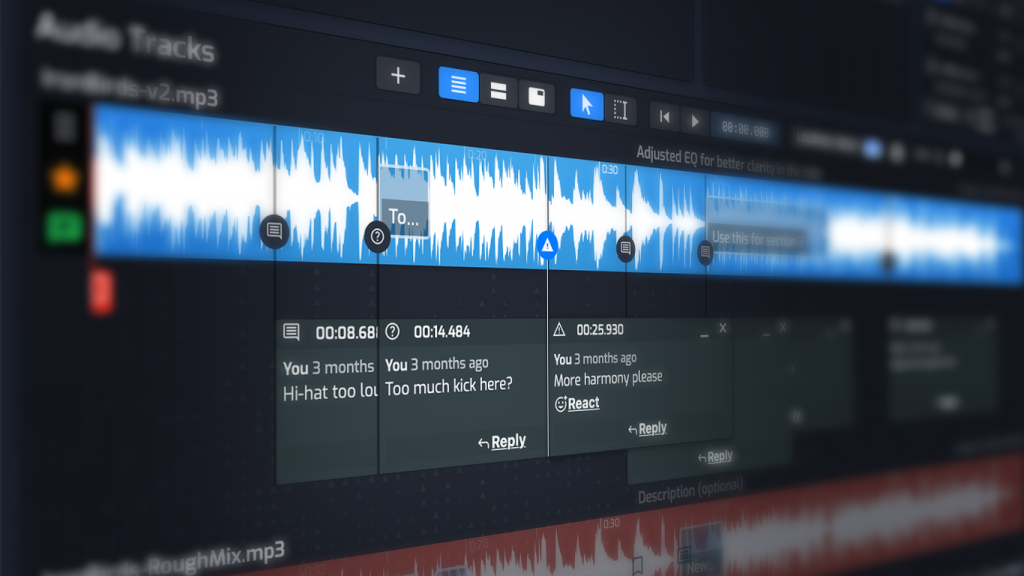
Contextual Feedback
Once collaborators enter the workspace, they can leave comments directly on the project.
Because discussions remain attached to the actual mix workspace:
- revisions stay contextualized,
- communication history is preserved,
- and everyone stays aligned on what changed and why.
Whenever new comments are added, Opusonix automatically notifies you via email so no one ends up waiting on responses.
4. Use A/B Comparisons for Better Decisions
One of the most powerful production workflows inside Opusonix is instant A/B comparison.
When working on:
- mix revisions,
- alternate masters,
- or reference tracks,
drop the files directly into the Tracks Pod.
You can then instantly switch between tracks during playback to compare versions in real time.
Why This Matters
A/B comparison helps engineers and clients:
- hear changes objectively,
- stay focused on progress,
- identify meaningful improvements,
- and avoid emotional revision spirals.
Instead of relying on memory or separate media players, everything happens inside a synchronized playback environment.
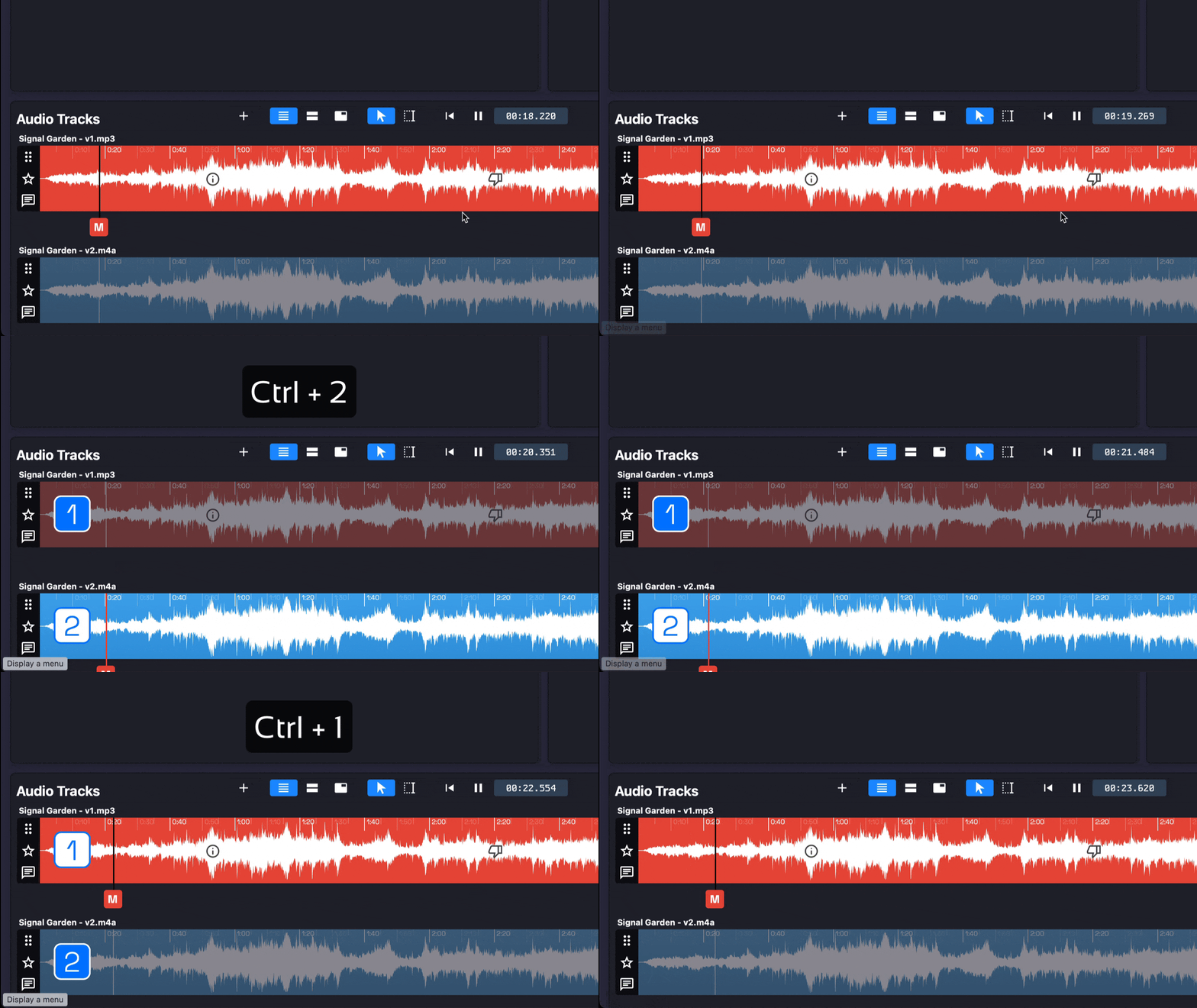
Loudness-Matched A/B Testing
Opusonix also supports loudness-matched A/B testing.
This is extremely important because louder tracks are often perceived as “better” even when the mix itself is not improved.
You can:
- choose from common loudness target presets,
- or match the loudness of another track directly.
This removes volume bias and allows everyone to evaluate revisions more accurately.
In practice, this leads to:
- clearer creative decisions,
- fewer unnecessary revisions,
- and faster project completion.
5. Reducing Mix Fatigue
Long-running mix projects can easily enter revision loops where progress becomes difficult to evaluate objectively.
After enough iterations, engineers and clients may lose perspective and start making changes simply because they have listened to the same material too many times.
Opusonix helps reduce this problem by preserving context and making progress easier to evaluate.
Keep Artistic Objectives Visible
Use the Notes Pod to document:
- creative direction,
- emotional goals,
- production objectives,
- and key artistic decisions.
Keeping these notes visible throughout production helps everyone stay aligned on the original intent of the project.
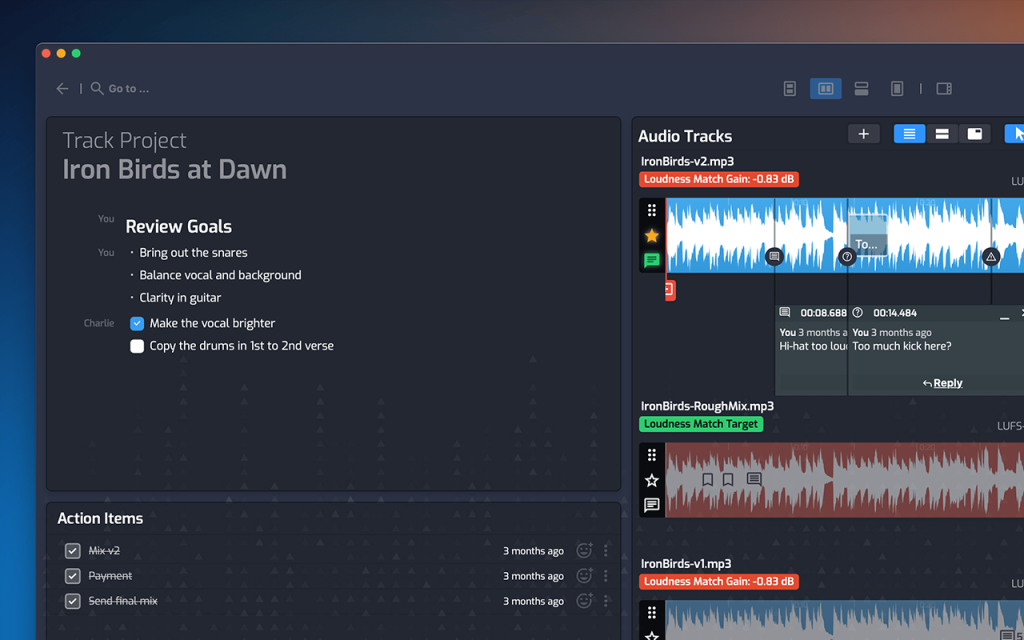
Preserve Important Milestones
When major revisions are completed:
- import them as milestone versions,
- keep them accessible,
- and use A/B comparison to evaluate actual progress.
This makes it easier to determine whether new revisions are genuinely improving the mix or simply changing it.
Reject Old Mixes Instead of Deleting Them
If a revision is no longer relevant, reject it instead of deleting it.
This preserves:
- revision history,
- discussions,
- decision-making context,
- and previous creative directions.
Maintaining history becomes extremely valuable when clients later ask:
- “Can we revisit version 3?”
- or “What changed between these mixes?”
Keep Discussions Contextual
Encourage collaborators to leave comments directly at the relevant moments inside the project.
Then reply directly to those comments instead of starting separate conversations elsewhere.
This keeps:
- communication organized,
- revisions traceable,
- and feedback actionable.
Over time, this substantially reduces cognitive load during complex projects.
6. Final Deliveries and Project Handoff
Once the final mix is ready, Opusonix simplifies the delivery process significantly.
Instead of manually:
- organizing exports,
- compressing folders,
- uploading archives,
- generating transfer links,
- and sending emails,
you can handle the entire process directly inside the project workspace.
Exporting Deliverables
Open the Share Panel and use the Export feature.
From there, you can:
- choose exactly what should be exported,
- select only primary mixes or all tracks,
- include stems or alternate versions,
- and specify which collaborators should receive notifications.
Once exported, Opusonix:
- compresses the files,
- prepares the download package,
- and sends download notifications automatically.
This removes a large amount of manual delivery management work.
Archiving Completed Projects
Once a project is complete:
- Go to your dashboard.
- Open the Projects section.
- Right-click the project.
- Choose Archive.
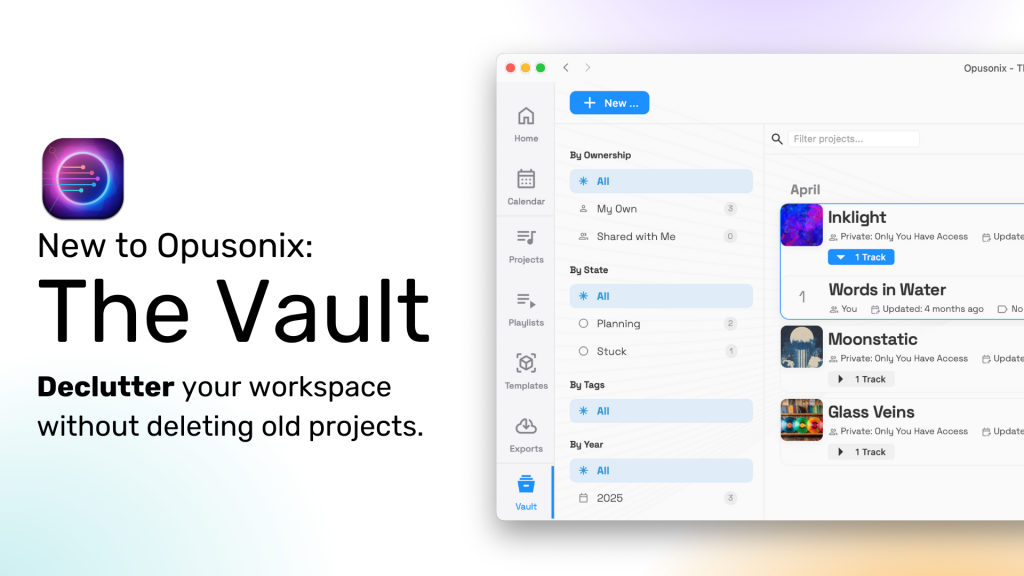
Archived projects are removed from your active Projects view and moved into the Vaults section.
This keeps your workspace clean while preserving full project history.
Transferring Ownership to Clients
For an even more professional handoff workflow, you can transfer project ownership directly to your client.
This allows the client to retain:
- the workspace,
- revision history,
- discussions,
- decisions,
- and production assets
inside their own Opusonix account.
Once accepted:
- the project becomes theirs,
- your storage quota is freed,
- and the client keeps a fully preserved production archive instead of receiving only exported files.
This creates a much more complete and professional delivery experience.
7. Build a Repeatable Workflow
One of the biggest long-term advantages of using Opusonix consistently is workflow standardization.
When every project follows the same structure:
- project setup becomes faster,
- communication becomes clearer,
- revisions become easier to manage,
- and client expectations become more predictable.
Over time, this reduces:
- mental overhead,
- context switching,
- file management stress,
- and administrative work.
Instead of reinventing your process for every project, you develop a repeatable system that scales naturally as your workload increases.
Clients also begin to trust the consistency of the experience:
- uploads always happen in the same place,
- revisions remain organized,
- communication stays contextualized,
- and deliveries become predictable.
That consistency creates a more professional experience for everyone involved.
Ultimately, the goal is not just to finish projects faster. It is to reduce friction throughout the entire production lifecycle so you can spend more energy on creative decisions instead of operational chaos.