
Mix Project Workflow (Part 2): Music Production Collaboration That Actually Works
Table of Contents
In Part 1, we focused on setting up a mix project—files, structure, and expectations. In this article, we shift to what happens once the work begins: reviewing mixes, managing revisions, and collaborating with clients without losing context or momentum.
Effective music production collaboration isn’t about more tools—it’s about keeping feedback, communication, and decisions tied directly to the music.
1. Collaborating Directly on Mixes (An Audio-Centric Workflow)
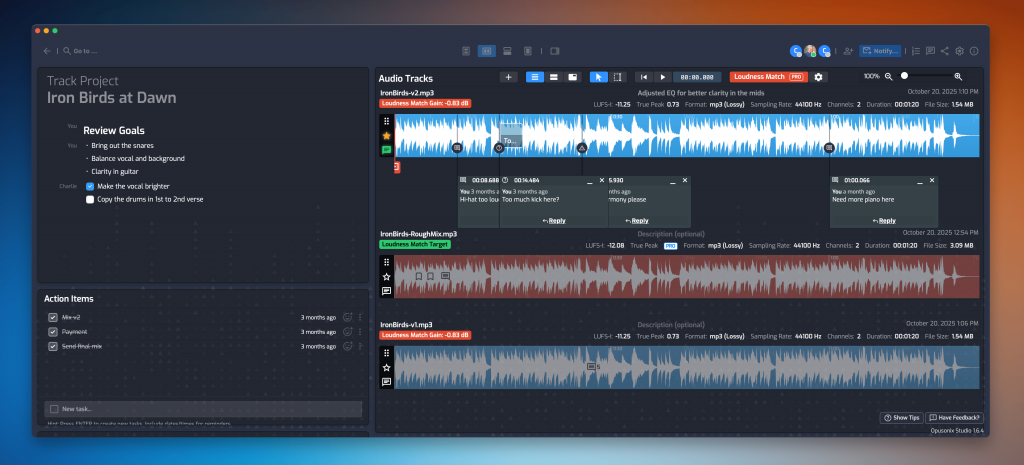
Managing mixes in Opusonix
In an Opusonix Track Project, all mixes live in the Audio Tracks Pod. You can add mixes in two ways:
Drag an audio file directly from your computer into the Audio Tracks Pod
Drag an audio file from the Files Pod into the Audio Tracks Pod (for example, a rough mix or reference uploaded by a client)
Once added, the waveform is rendered immediately and ready for playback.
As you noticed: audio files could live in the Audio Tracks Pod and/or the Files Pod. This separation is intentional. The Files Pod is for storage, while the Audio Tracks Pod is where review and collaboration happen. Only audio tracks in this pod can be played back, commented on, compared, and used in playlists or dashboard previews. If multiple tracks are present, the starred (primary) track is the one Opusonix uses by default in these contexts.
There’s also an important control here for engineers: if you want to prevent clients from downloading mix files, upload them to the Audio Tracks Pod and disable “Allow Editors to Download Audio Files” in the settings. Files uploaded to the Files Pod don’t offer this level of control.
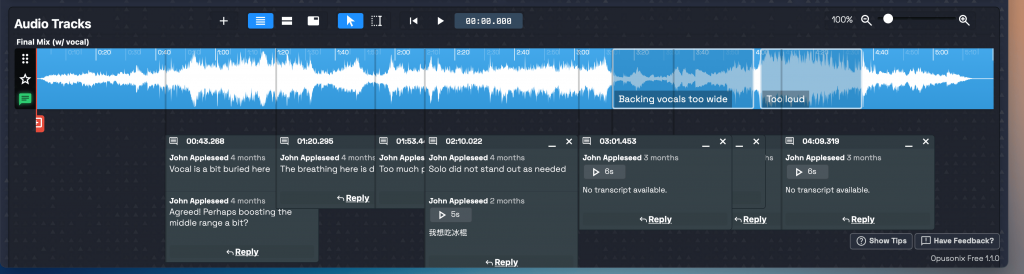
Commenting and discussing directly on the track
Commenting on music is one of the most frequent actions during a mix project—and traditionally one of the most tedious. Opusonix removes much of that friction.
To add a comment, simply move to the desired playback position and click New Comment at the playhead. Type your comment and press Enter. No manual timestamps, no switching apps.
For faster reviews, you can use the M key while listening. Pressing M drops a marker instantly without interrupting playback. You can leave multiple markers during a listen-through, then return to type comments afterward—especially useful in early revision rounds.
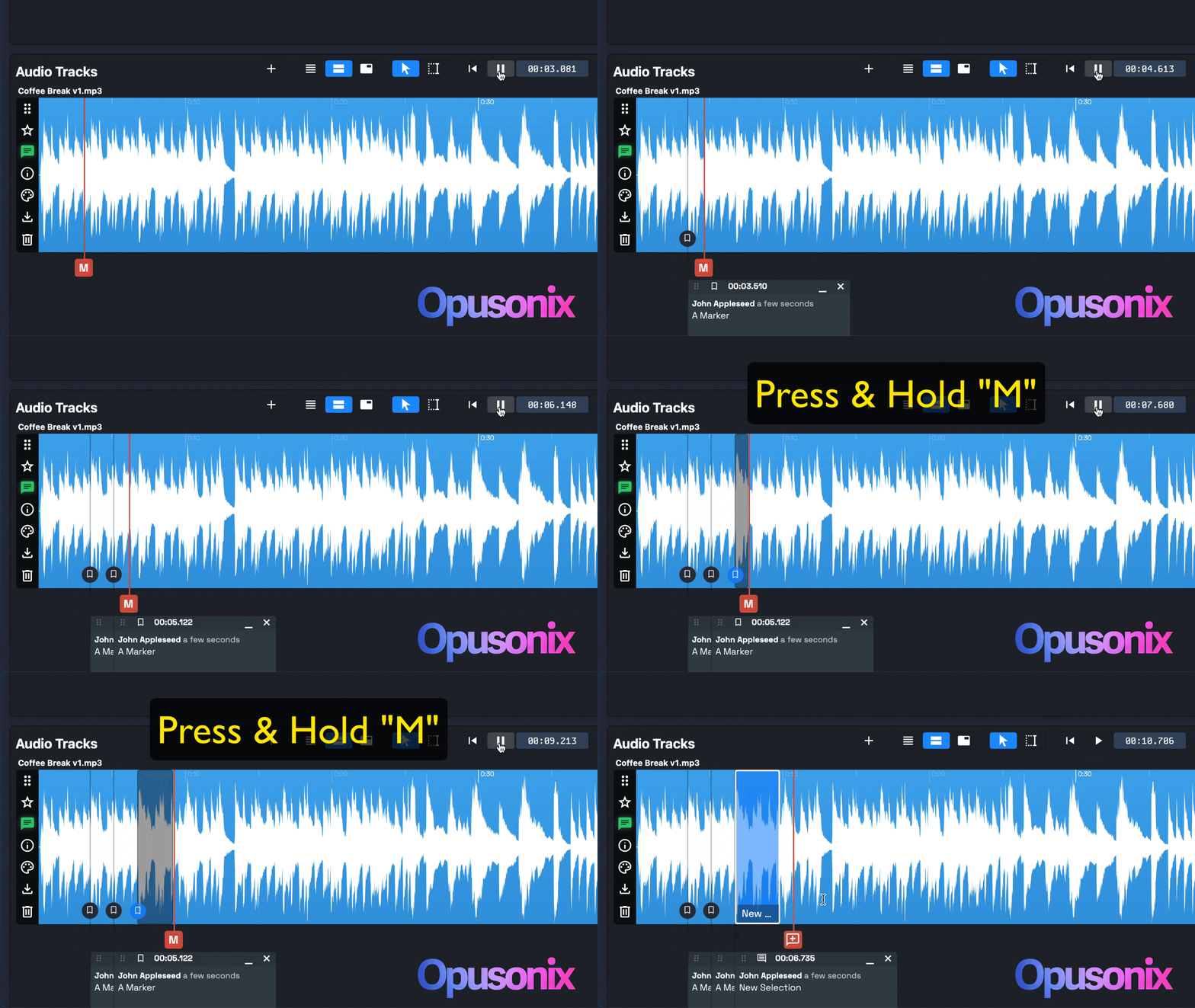
You can also mark regions on a track. Switch to the Selection tool, click and drag to define a section, and label it however you like (verse, chorus, bridge, or an issue such as “needs more space”). You can even create regions on the fly by pressing and holding M during playback, then releasing to end the region.
Markers and regions can be assigned different icons—question marks, exclamation points, or other symbols—making it easier to visually scan comments by type or urgency.
Text vs. audio comments
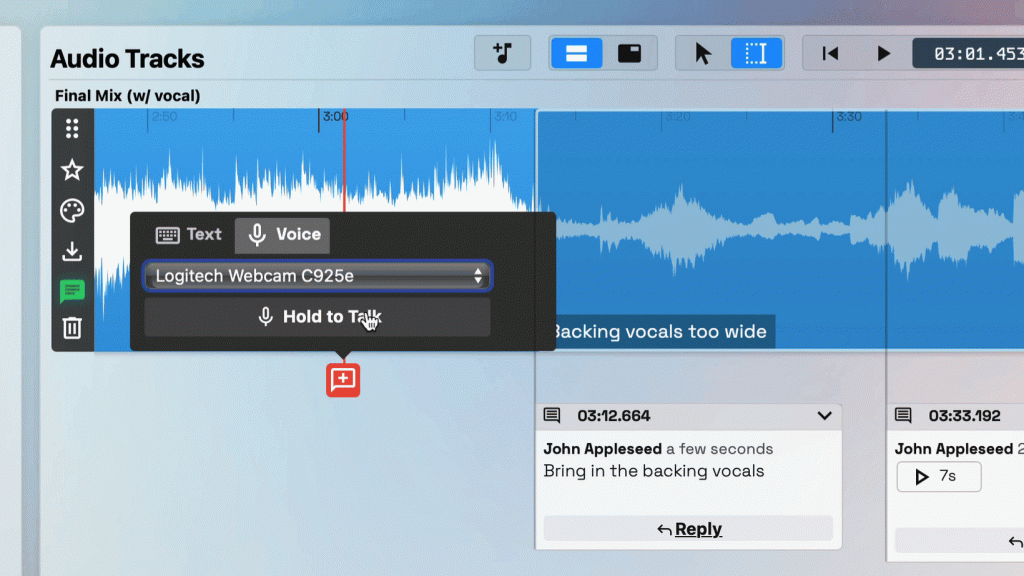
In addition to text, Opusonix allows collaborators to leave voice comments directly on the track. This is especially helpful for clients who may find it easier to describe what they’re hearing verbally rather than in writing.
All voice comments are automatically transcribed, so their content remains searchable and visible alongside text comments. By lowering the barrier to giving feedback, both text and audio comments tend to improve clarity—and ultimately the quality of the final mix.
Conversation on the timeline
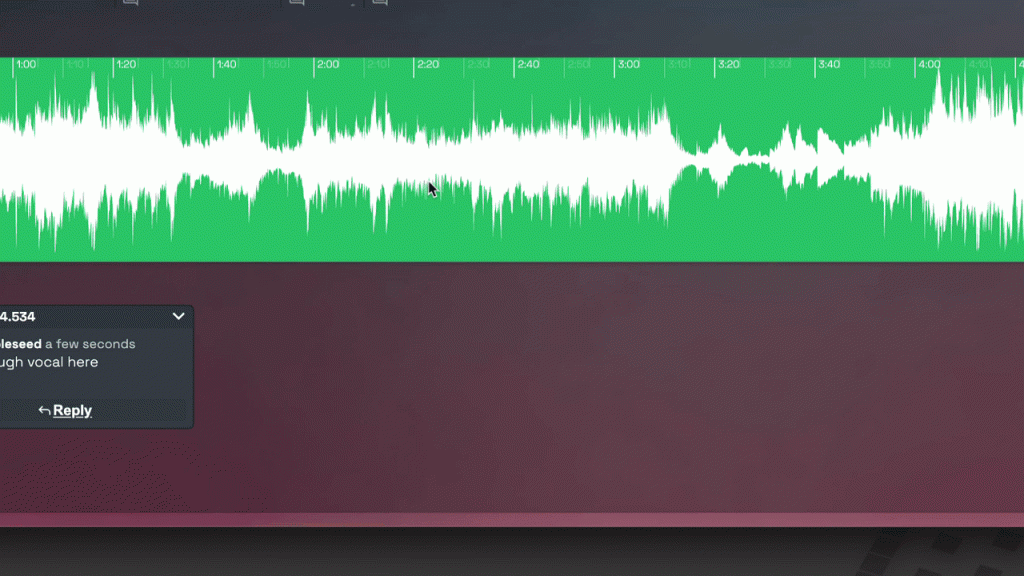
Every comment supports reactions and replies, allowing full conversations to happen at a precise point in the music. Emoji reactions make quick responses easy, while threaded replies allow deeper discussion without leaving the track.
Because these conversations are anchored to specific moments in a specific mix version, context is preserved. This alone eliminates a large portion of the back-and-forth that typically happens in email threads.
When a comment thread is resolved, it can be minimized to reduce visual clutter, or marked with a Completed icon. The conversation remains intact, but the focus stays on what still needs attention.
Managing large feedback sets

As projects grow, so does feedback. Opusonix provides two ways to manage it at scale:
Sidebar comment list: View all comments as a list, each labeled with its timestamp. Clicking a timestamp jumps playback directly to that point.
Export comments: Download all comments as a TSV (spreadsheet) file for use in Excel or Google Sheets.
This is particularly helpful for long-form content (film scores, podcasts), dense revision rounds, projects with multiple stakeholders, or situations where printed notes are needed.
2. Centralizing Communication with Clarity
Conversational Notes as a living document

The Notes Pod acts as a track-wide, collaborative document. All editors can write and edit in real time, similar to Google Docs—but with the added benefit that each contribution is clearly attributed.
This is the right place for:
Project planning notes
Creative direction
Key decisions
Open questions
Time-specific feedback belongs on the track itself; broader discussions belong in Notes. The Notes Pod supports formatted text, links, images, embedded files, and checklists, and naturally evolves as the project progresses.
Using Chat for quick coordination
For short messages or time-sensitive questions, Opusonix includes a Chat Pod accessible from the top-right corner of the workspace. Chat is persistent, so conversations remain visible when you return later.
You can quickly tag someone by clicking their avatar, which opens chat with their name prefilled. This makes Chat a lightweight way to coordinate without cluttering notes or comments.
Notifying collaborators without leaving Opusonix

When it’s time to bring someone back into the project, the Notify Editors… feature sends an email directly from Opusonix. The message includes your note and a button that takes recipients straight to the correct Track Project.
This avoids switching to email, hunting for links, or creating fragmented message threads.
Staying in sync automatically
Collaboration slows down when people miss updates—not because they’re disengaged, but because they’re busy. Opusonix solves this by keeping everyone passively informed.
Each night, collaborators receive a concise activity summary showing what changed: new mixes, new comments, and key conversations. No manual follow-ups, no digging through the project to see what’s new.
The result is awareness without interruption. Engineers spend less time managing communication, and collaborators stay confident they won’t miss anything important—so the project keeps moving forward smoothly.
3. Listening, Comparing, and Making Better Decisions Together
A/B testing and loudness-matched comparisons
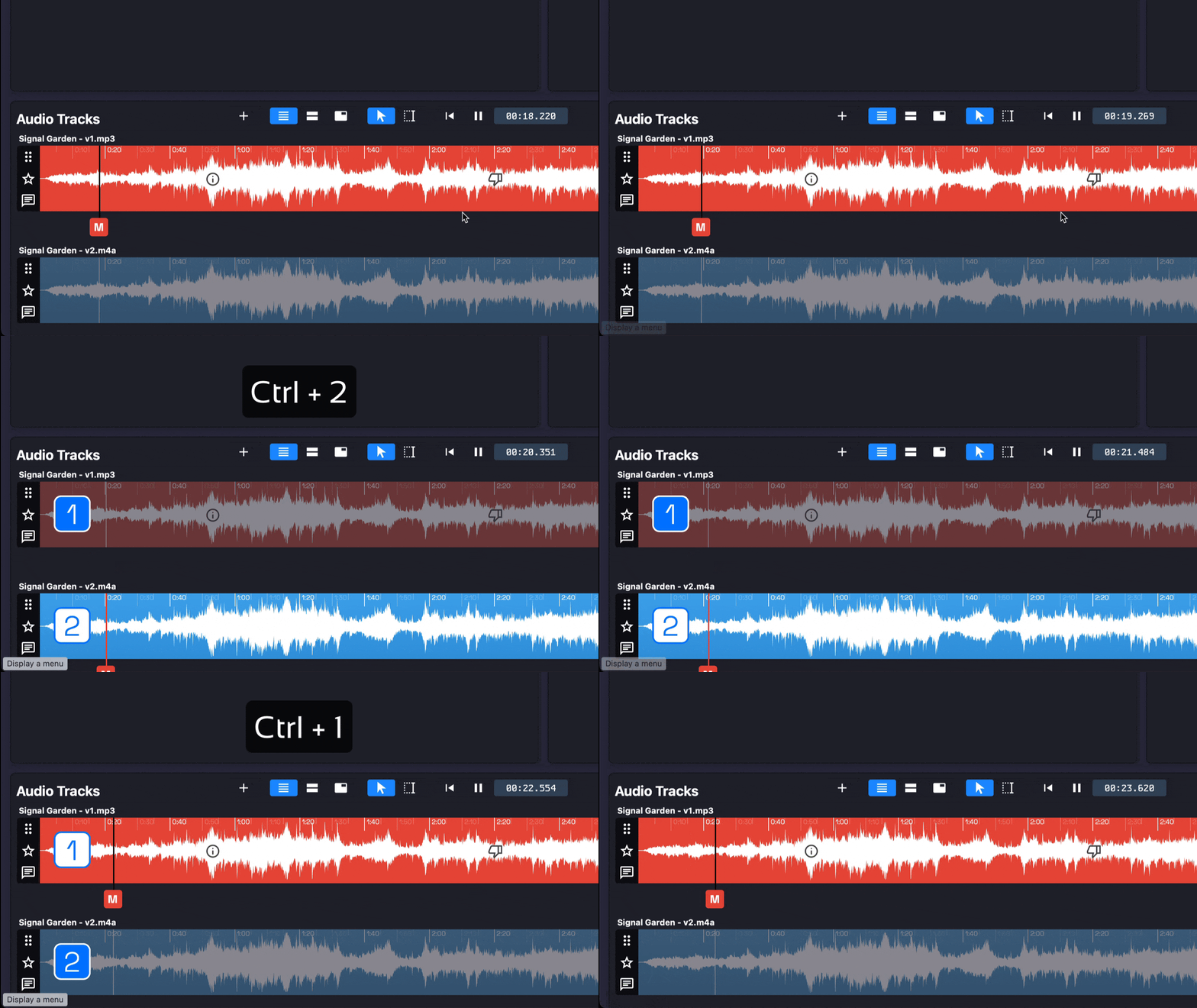
Opusonix makes it easy to compare mix revisions. While playing audio, simply click another track to switch instantly—no interruption. Optional loudness matching ensures comparisons are fair and unbiased. You can also compare mixes against reference tracks.
For section-based comparisons, use Sync Markers. Set a marker on one track, then switch to another to compare different sections across versions. Pressing S during playback places a sync marker instantly.

Managing revisions without losing history
When multiple mixes exist:
Star a track to mark it as primary
Reject older mixes to gray them out without deleting them
This keeps the focus on the current version while preserving all previous discussions and decisions.
Listening beyond the studio
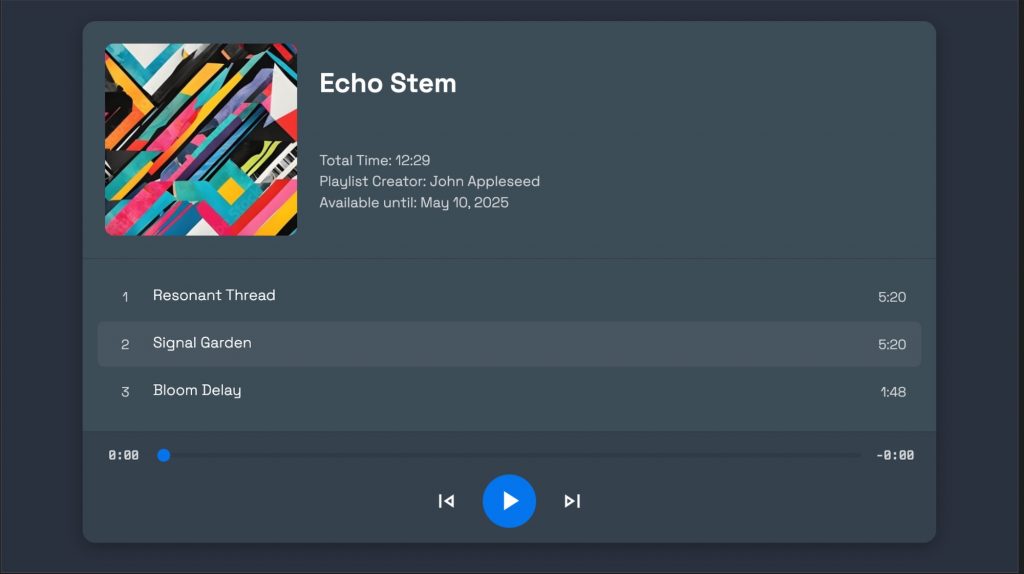
Need to listen away from the studio or share with external listeners? Create a Playlist from the Share panel. Playlists provide a mobile-optimized, Spotify-style listening experience and can be shared publicly—without granting access to the full workspace.
This is ideal for testing mixes on different systems or getting feedback from stakeholders who don’t need full project access.
Conclusion
Strong music production collaboration depends on keeping feedback, communication, and listening decisions connected to the music itself. By centralizing mixes, comments, comparisons, and conversation, Opusonix removes friction from the revision process and helps teams move faster with confidence.
In Part 3, we’ll look at managing multiple mix projects at once—and how to stay organized when everything is moving simultaneously.